Hi @omar_giancarlo, welcome back!
Finding non-matching rows existing at any point between a Table 1 column and a Table 2 column takes the transform step Find overlap:

Within the step Find overlap settings, change the default selection of
match to do not match for keeping not equal rows between Table 1 Column 1 and Table 2 Column 1.
Finding non-matching rows between two tables’ columns along the same row line takes these three transform steps:

(Steps Combine Tables, Insert if/else column, and Filter rows.)
First, you’ll use a column between the two tables that they have in common and join them based on this. (If they don’t share a column with matching values, you can use the step Insert column to add in a column with row values of ‘1’ in each table after their import steps and join them with this Combine tables step this way.)
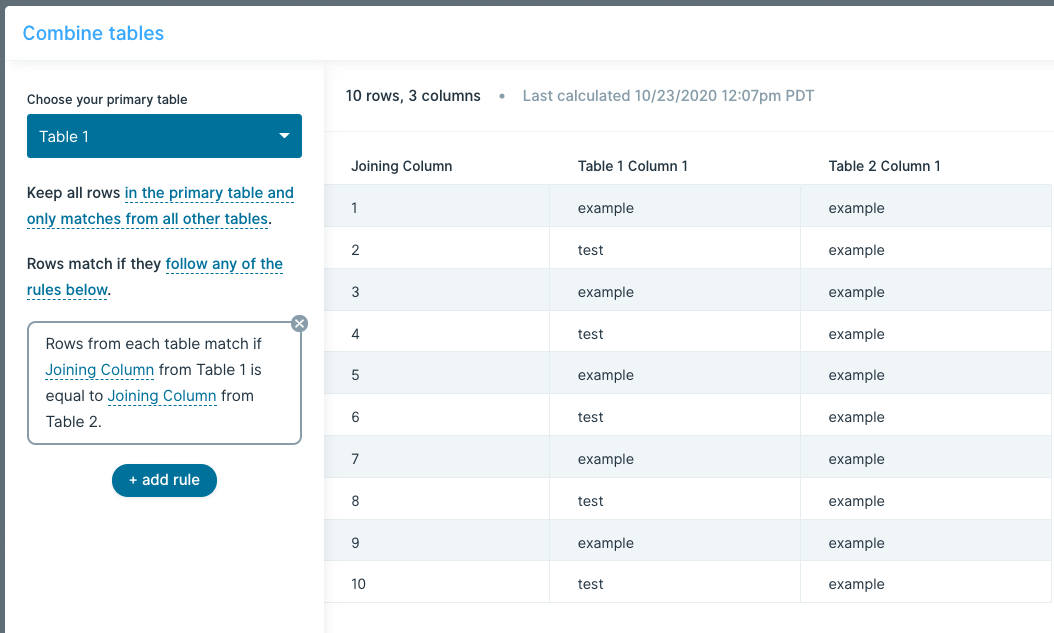
Then, you’ll insert a column that fills in rows conditionally. In my example pictures, you’d create the condition Table 1 Column 1 column is not equal to {Table 2 column 1} with the new row value being not equal. This way anytime Table 1’s column rows don’t match Table 2’s column rows, a value will be filled into the new column.

After that, you’d finish with a Filter rows step to select the new column of conditional rows (in this case Not Matching Rows) and keep rows if they is equal to the value not equal. Similarly, you can view only matching rows by selecting to keep rows if they is not equal to that value.
